

Ensure that you involve the right people and request their approval on a job offer before sending them out to your candidate. Get the approvals needed and the job offer will be sent out to the candidate automatically. Work smarter and have full control over your job offers.
Please note that this is an enterprise feature. Reach out to your contact person at Teamtailor for more information on how to start using it.
Set up default and custom flow
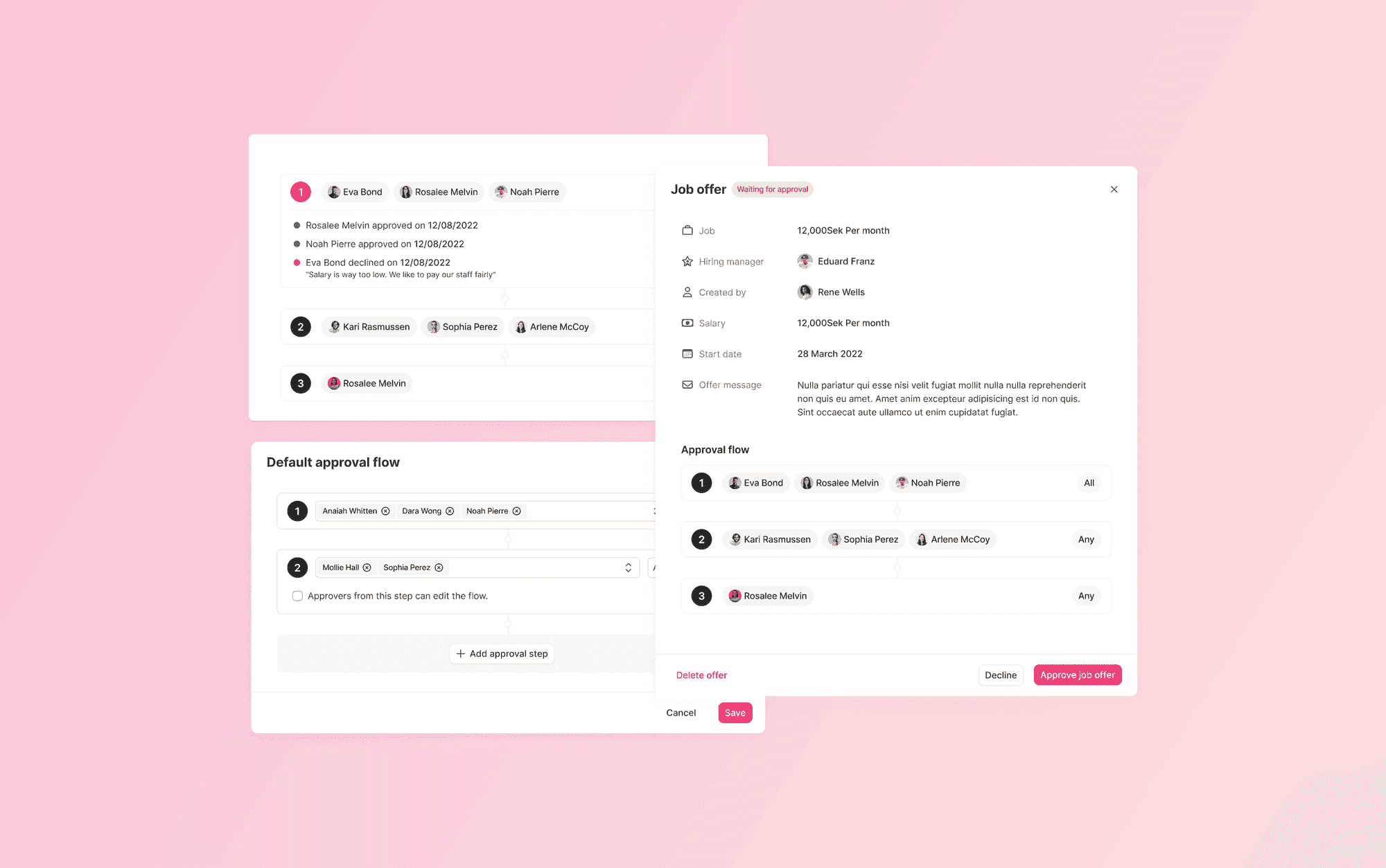
Add approvers to your default flow in Settings. This is the flow that will be used for all job offers, except for the ones that matches your custom approval flows. By toggling the "All/Any" setting, you can choose if the steps containing more than one people needs an approval from all of them, or if one is enough.
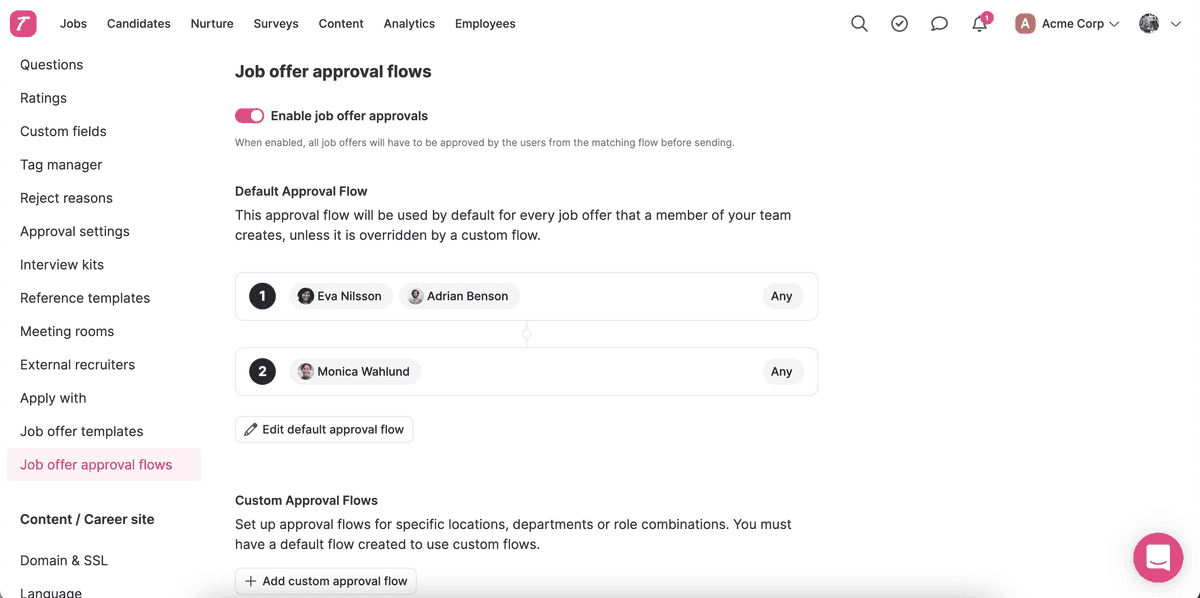
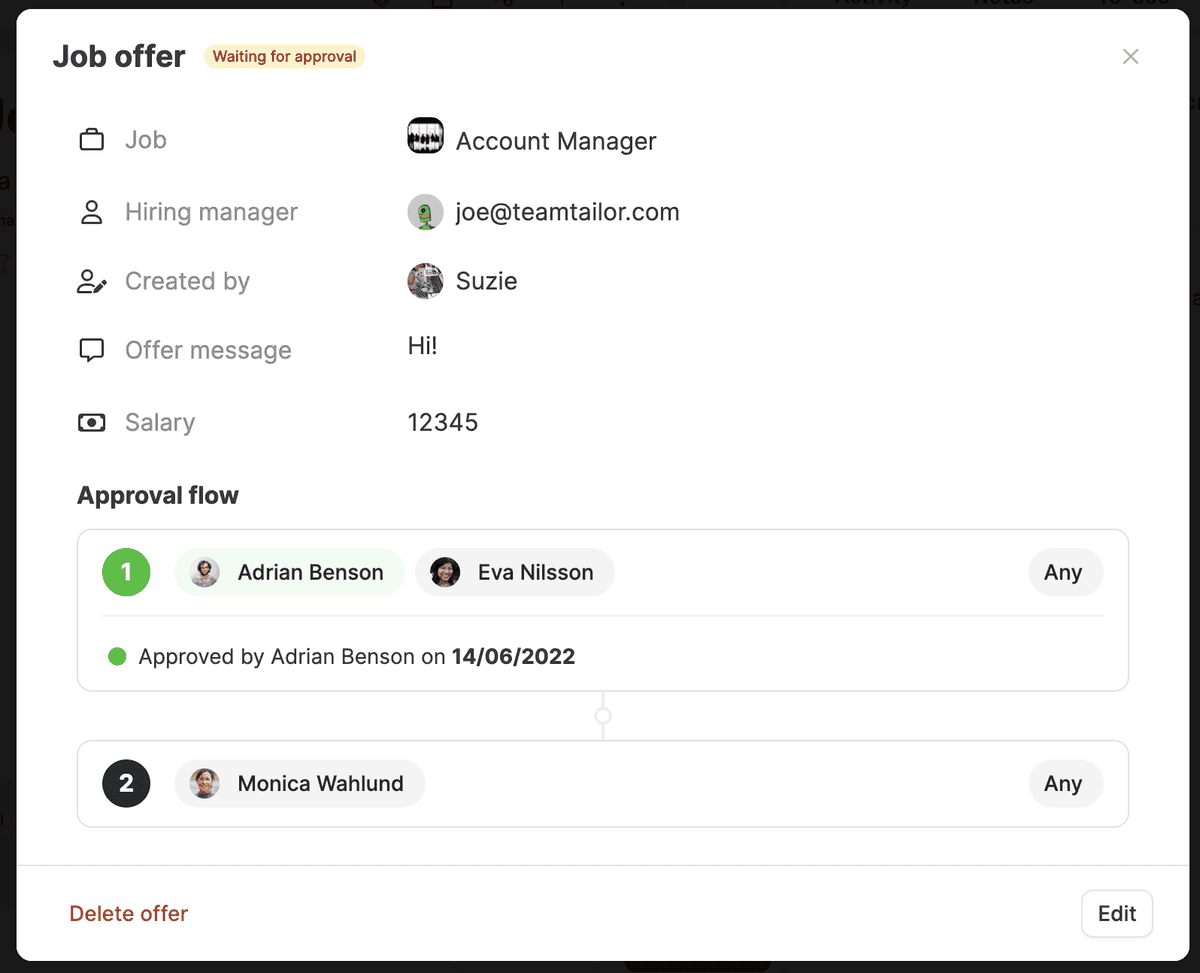
In this setup, Eva or Adrian needs to approve the offer request first, and then it will be sent to Monica.
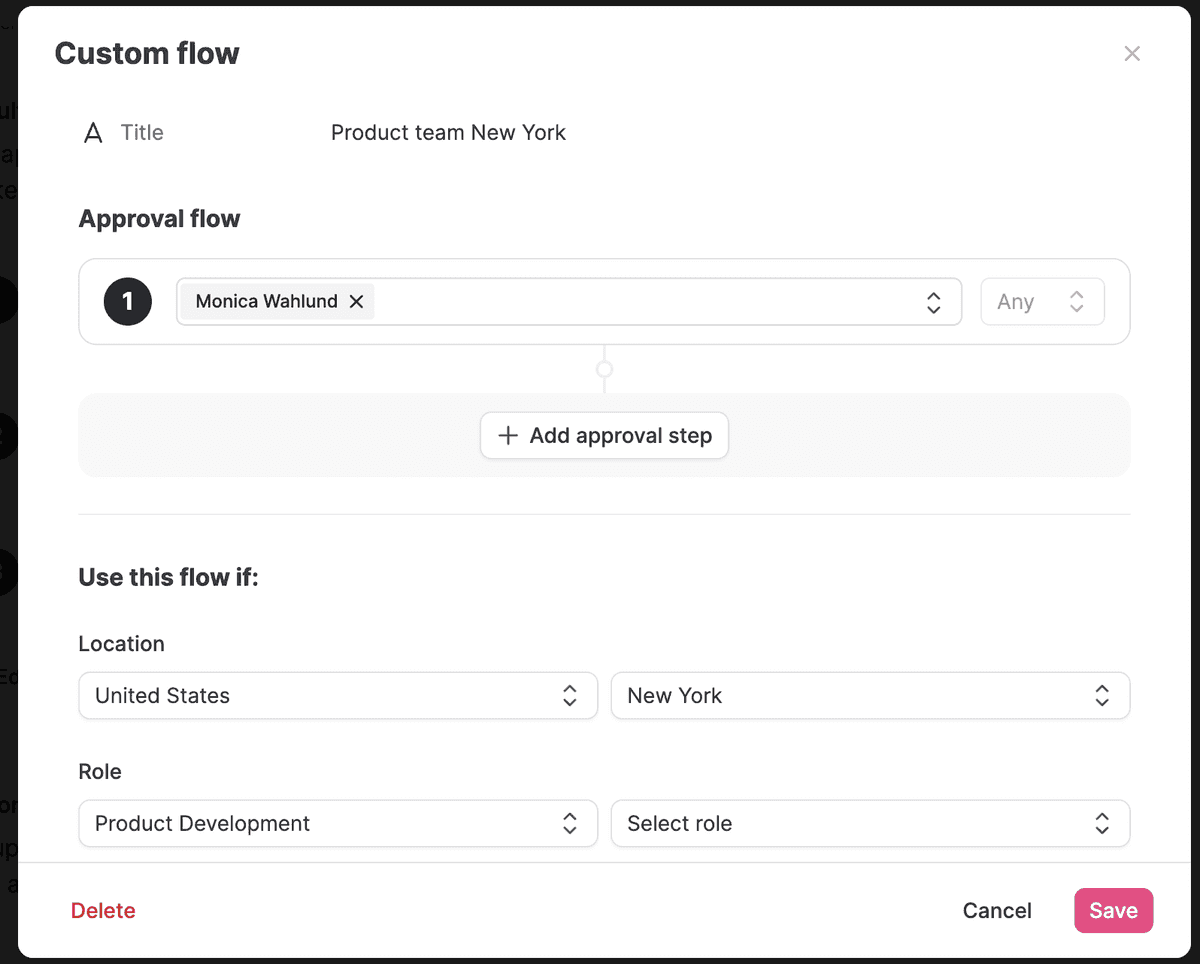
Create custom flows to adjust the approval steps for jobs in specific locations and/or specific departments and roles. If a job offer for a job to the Product team in New York, only Monica will need to approve it, with these settings. Set up as many custom flows as you like and make sure you have the right approvers.
Creating a job offer to the candidate
Creating a job offer to the candidate works just as before, but when you get to the bottom of the form you'll see the approvers that will get this job offer before the candidate does. After all necessary approvals are registered, the job offer will get sent to the candidate for their approval.
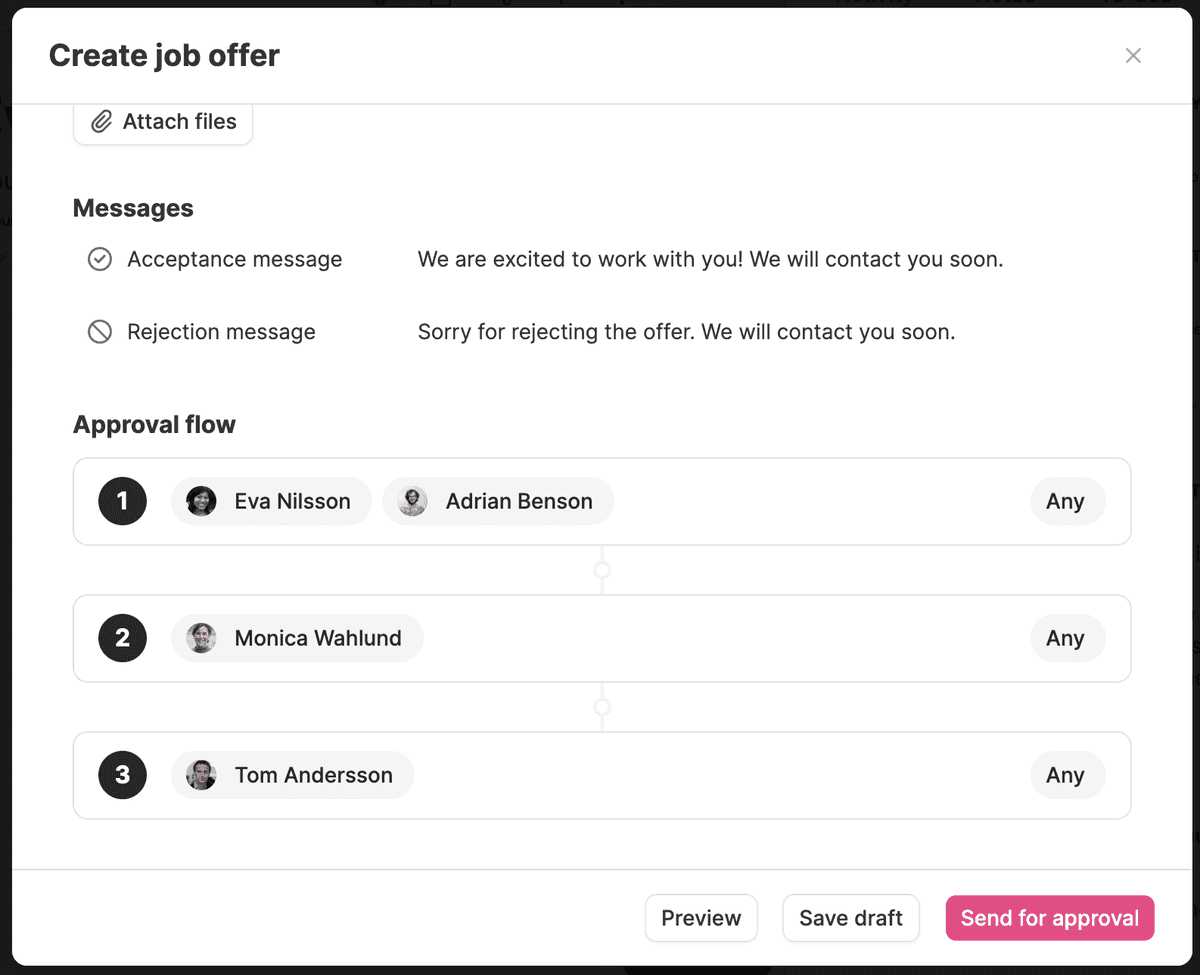
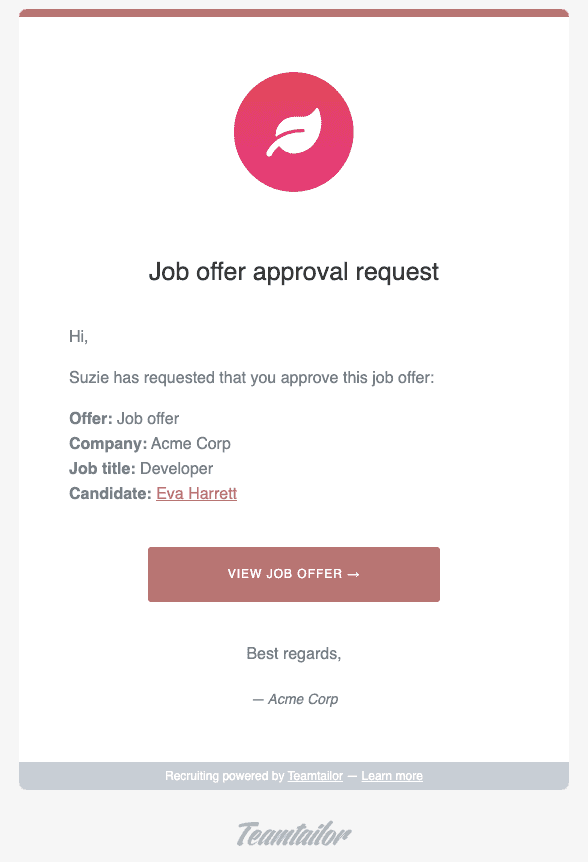
The approvers gets notified about the request and can review it, and proceed to approve or reject the request.
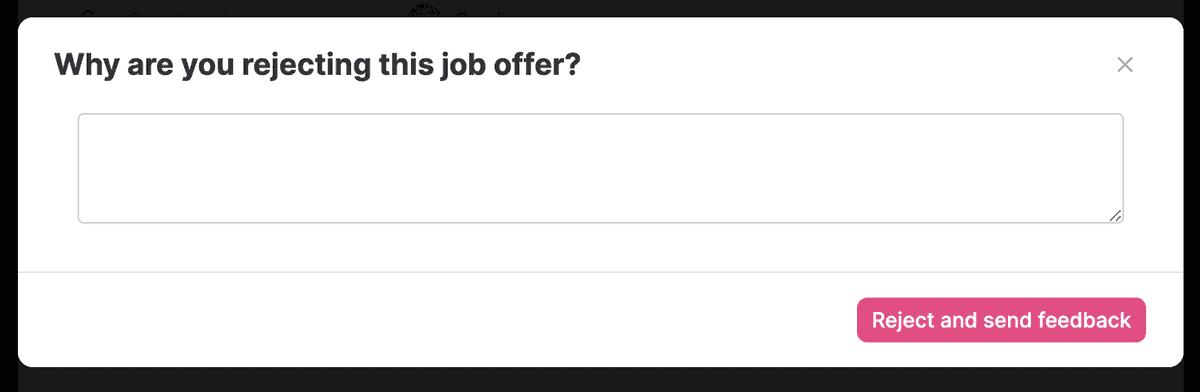
The approvers can write why the offer was rejected so that the colleague that created the offer gets that information and can take the necessary steps to fix it.
As it gets approved by users, you'll see that in the job offer and also who is up next.
We really hope you and your team like this feature and that it makes the process of getting approvals for offers a better experience.
❤️ /The Teamtailor Product Team